


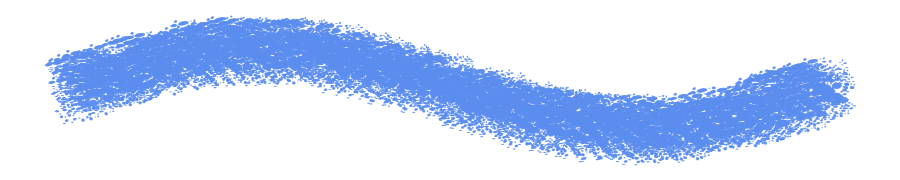

Paint online for free, right in your browser
Magma is a painting app that runs in your browser. You get pen pressure, brushes that blend like paint, layers and PSD export, with nothing to install. When you want company, send a link and paint on the same canvas with friends.

What you can do when you paint online in Magma
 Layered PSD export
Every painting tool, in eight seconds
These are the same short clips you see when you hover a tool in Magma. Each one links to its guide in the Help Center, and the keyboard shortcut is on the card.
Overlay your artwork with custom line grids that help with perspective drawing.
Learn moreReal strokes, straight from Magma’s brush engine


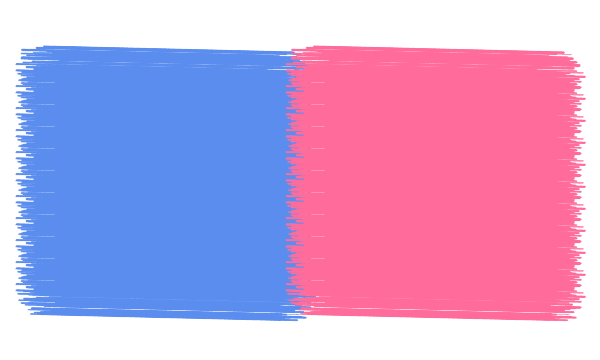
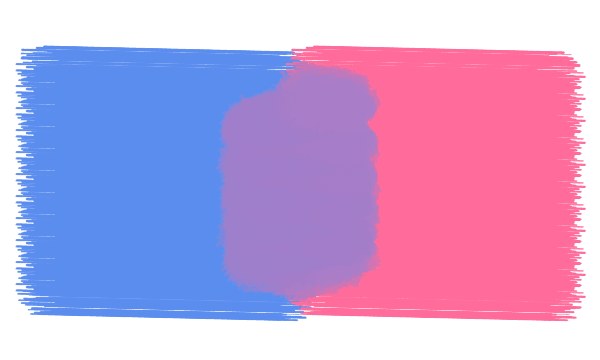
These images were drawn by Magma’s own brush engine with the presets you get in the app, not mocked up. See every brush
What's free, and what Blaze adds
You can paint online in Magma without paying anything. The free Spark plan includes:
- A canvas up to 4096 × 4096 px
- Up to 60 layers
- Up to 30 artists painting on the same canvas at once
- Layered PSD, PNG and JPEG export
- 7 days of version history, so you can step back to an earlier state
- Voice and text chat on every canvas
- Blaze ($9.99/month) raises the limits: an 8K canvas, 200 layers, 50 artists per canvas, unlimited version history, dropping PSDs onto a canvas as layers, and no ads. See pricing
How to start painting online
You'll be painting in about a minute. These steps work on Windows, Mac, Chromebook, Linux and tablets.
Open a canvas
Go to magma.com and create a free account with Google, Discord or email. Then start a new canvas. It runs in your browser, so there's nothing to download.
Connect your pen
Plug in your pen tablet or pick up your stylus. Draw one light stroke and one firm stroke with a pressure brush: if they look different, pressure is working. Using a Wacom? Follow our Wacom setup guide.
Block in big shapes
Start on a new layer with a large, soft brush at low opacity. Get the big shapes and values down before any detail, and keep your sketch on its own layer so you can hide it later.
Build up color
Add color on layers above your sketch. Use a clipping layer to shade inside a shape without going over the edges, and the blending brush to soften transitions.
Invite a friend (optional)
Share the canvas link and talk over voice while you paint. You can each work on your own layers, or paint over each other's shapes.
Export your painting
Your work saves to the cloud as you paint. When you're done, export a PNG or JPEG to share, or a layered PSD to keep working in another app.
Tips for your first online paintings
- Work from big to small: silhouette, then light and shadow, then color, then detail. It's the same order whether you paint on paper or online.
- Keep layers for jobs, not for every stroke: sketch, flats, shading, lighting, details. It keeps the file easy to handle and easy to hand off.
- On an older laptop or a low-power Chromebook, start around 1920 × 1080 px. Big canvases and heavy blending ask more of your device.
- Turn the stabilizer up for clean line art and down for loose, painterly strokes.
- Use version history as a safety net: try the bold idea, and step back if it doesn't work.
- Stuck? Paint next to someone. An open canvas or an Art Jam is a good cure for art block. Try drawing together
Made together in Magma
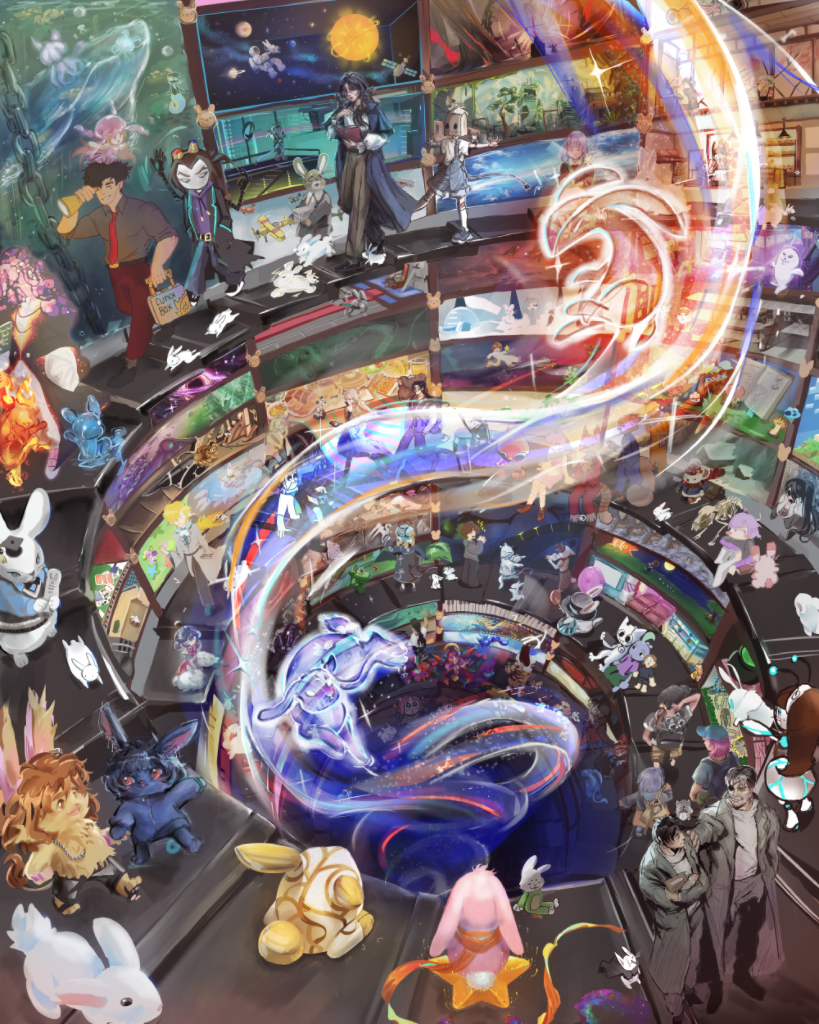
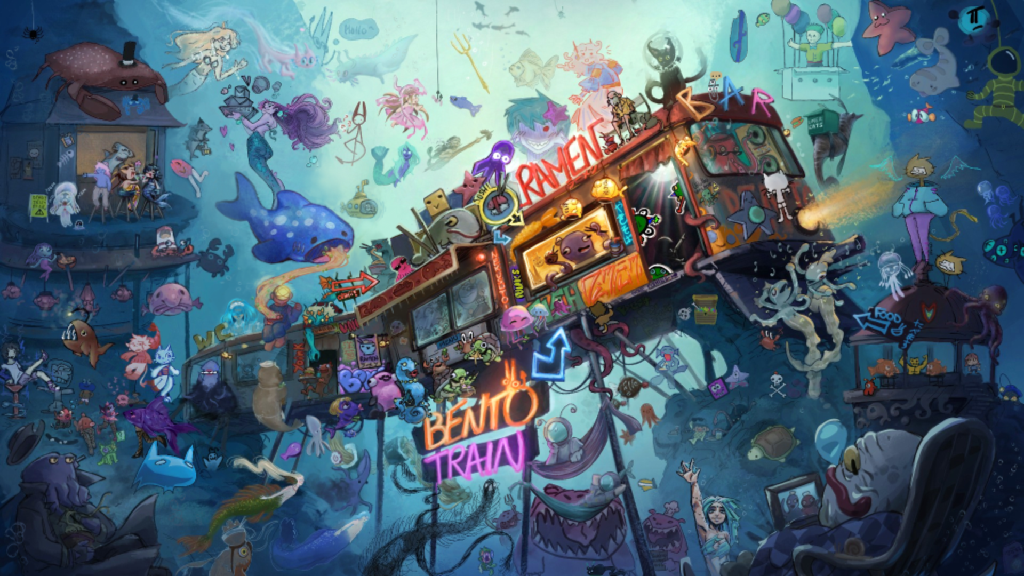
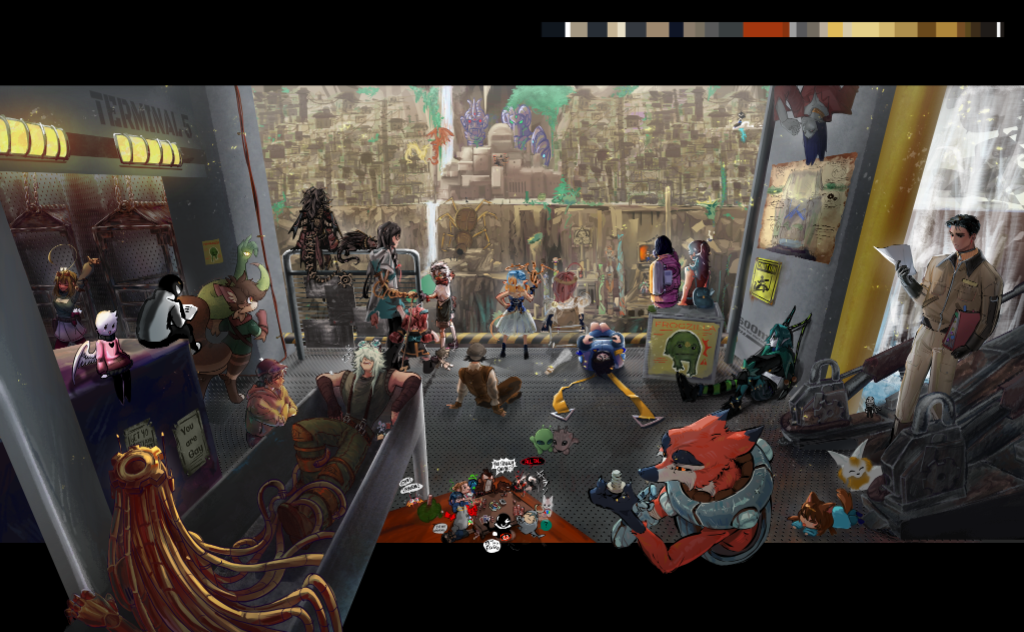
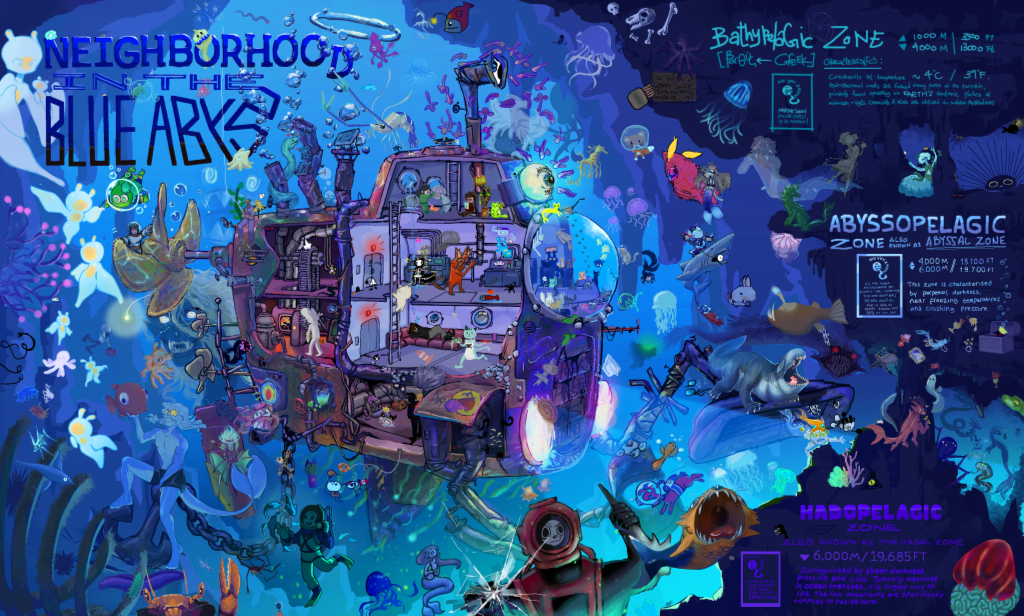
Painting online with friends and other artists
Most online painting apps are made for one person. Magma is made for painting together, and it's live: you see every brush stroke the moment it's painted, not a file that syncs later.
Send a friend the link to your canvas and paint the same piece while you talk over voice. Or open a Multiboard, an infinite canvas with many canvases side by side, and give everyone their own space for comic pages, webtoon strips, studies or references. A board holds hundreds of artists.
You can also paint with people you haven't met yet. Join an Art Jam, drop into an open canvas, or find an Artspace, which is a bit like Discord for artists: chat channels, voice and events around the art you care about. 5M+ artists are on Magma, and their work fills the community gallery.
Coming from another painting app?
Good to know before you start
- Magma is always online: every stroke saves to the cloud as you paint, so you need an internet connection. There's no offline mode.
- There are no layer groups or layer masks yet, and no animation timeline.
- Magma has no generative AI tools. Everything on the canvas is painted by people. Read our AI Art Manifesto.
- Prefer an app window? There's a desktop app for Windows and Mac (Apple Silicon), and on tablets you can add Magma to your home screen so it opens like an app.
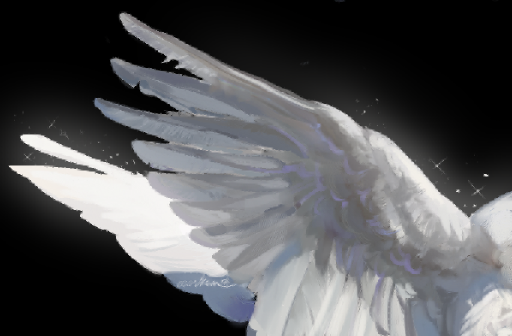
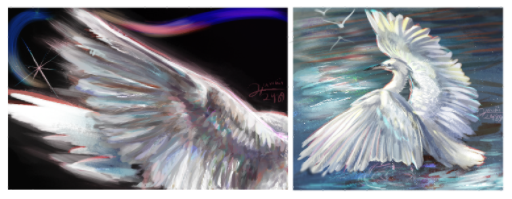
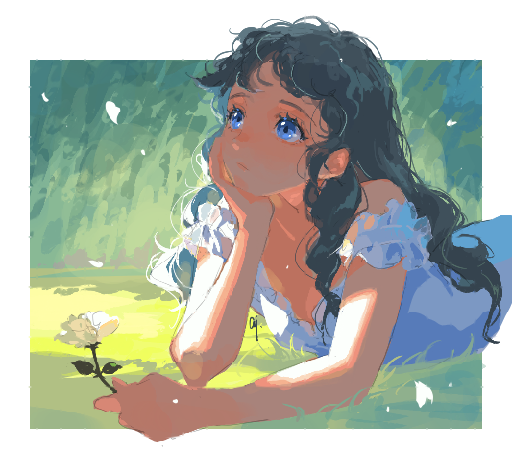
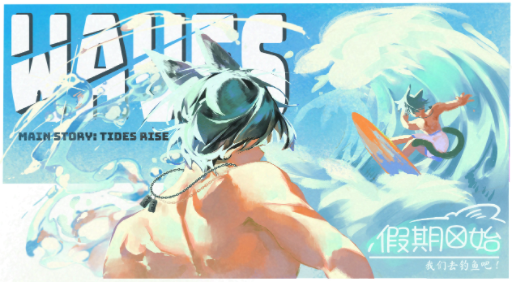
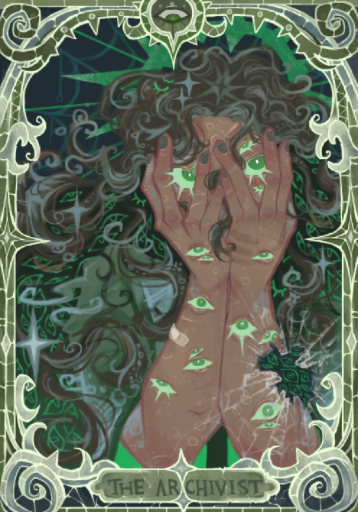
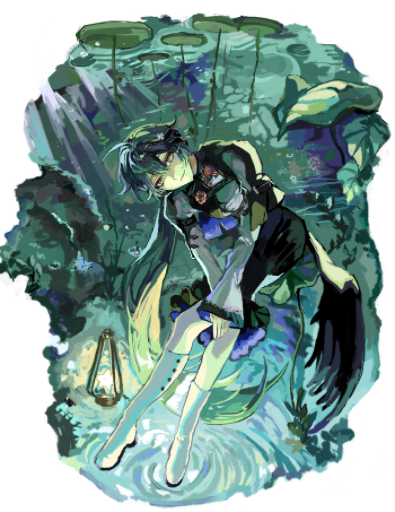
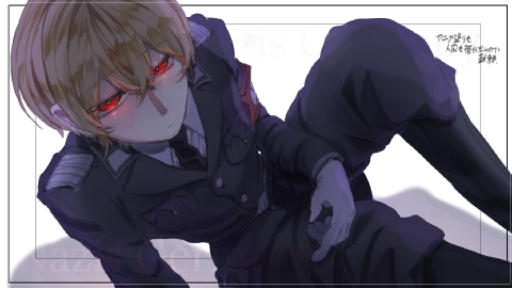
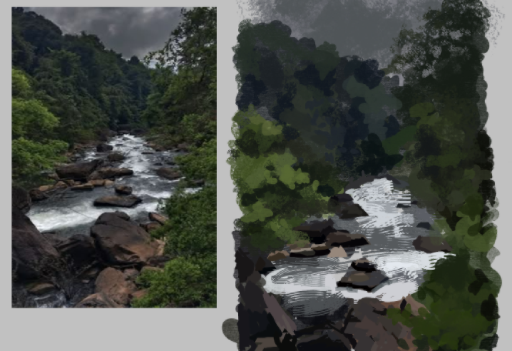
Featured works from the community
Frequently asked questions
Can I paint online for free?
Yes. Magma's free Spark plan gives you a 4096 px canvas, up to 60 layers, pressure-sensitive brushes, layered PSD export and painting with up to 30 people on one canvas. Blaze ($9.99/month) raises the limits and removes ads.
Do I need to download anything to paint online?
No. Magma runs in your browser on Windows, Mac, Chromebook, Linux and tablets. If you'd rather have an app window, there's an optional desktop app for Windows and Mac.
Does online painting work with my drawing tablet?
Yes. Magma reads pen pressure and tilt from pen tablets and styluses through your browser. If your lines don't change with pressure, check the tablet driver first. Our Wacom setup guide walks through it.
Can I paint online with friends?
Yes. Share your canvas link and up to 30 people can paint on it at the same time on the free plan (50 on Blaze), with voice and text chat. You see each other's strokes live. More about drawing together
Can I open my Magma painting in Photoshop or Clip Studio Paint?
Yes. Export a layered PSD: layer names, opacity, blend modes and clipping carry over. To bring a PSD back, start a new board from it for free (layers come across, folders are flattened), or with Blaze drop it onto an existing canvas as layers. On the free plan a PSD comes in as a single image.
Can I paint online on my phone or tablet?
Yes, in the browser on iPad and Android tablets, with pen pressure from your stylus. Add Magma to your home screen and it opens like an app. A phone works too, though a bigger screen is more comfortable. Tips for small screens
Does Magma use generative AI?
No. Magma has no AI image-generation tools. Read our AI Art Manifesto to see why.
Can I paint offline?
Not at the moment. Magma saves your work to the cloud as you paint, so you need an internet connection.
Keep exploring
Your canvas is ready. Pick up a brush.
Paint with pen pressure, blending brushes and layers, free in your browser. When you want company, send the link and paint together.